.png?width=300&height=50&name=kb-logo-alt%20(1).png)
The Stopwatch element allows you to add a dynamic clock that counts up to your Custom Graphic.
To get started, add a Stopwatch Element to your Custom Graphic. Then click on the Timer layer, to open all of the customization options.
There are three options:
- Count Up, Time: counts up from 0 by default
- Count Up, Date & Time: counts up from a set date & time
- Stopwatch: counts up from 0 with the option to include milliseconds

On the right side of your screen you can start by customizing the size and placement of your Stopwatch. Then customize the following options:
- Timer format: choose count up, time; count up, date & time; or stopwatch
- Display format: choose what units to show & hide (ie. minutes, seconds, milliseconds)
- Preview: set default values for your timer; these are the values that will initially load when you bring your Countdown live. You can always change them in real time in Producer.
- Style & Animation: These customization options are primarily the same as any other text layer in your Custom Graphic, including opacity, font, color, and text styles. The countdown & unit names can each be styled independently.
- Item gap: control the number of pixels between items
- Basic vs. flip clock: controls the style of the countdown, choose basic (numbers only) or flipping tiles (Count Up only, not available for Stopwatch)
- Show units: option to show & hide the units (ie. minutes and seconds) or change the labels (ie. min and sec) (Count Up only, not available for Stopwatch)
- If you choose not to show units, you have the option to show or hide dividers, the colons between your units
Use your Countdown in Tagboard Producer
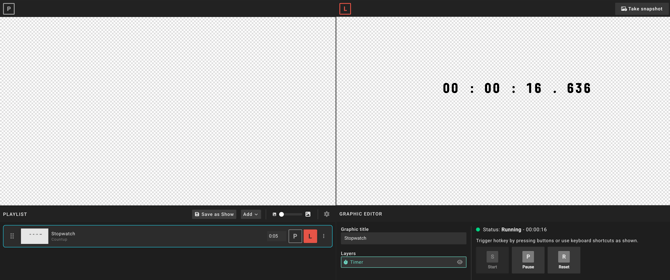
Once your Custom Graphic is complete, add it to your Playlist in Tagboard Producer. Select the Graphic on your Playlist, to open the Editor. Select the Timer layer to control your countdown. Note that the layer needs to be selected in order to use the hotkeys.
You can manually play, pause, and reset your timer. Once you hit play, the timer will keep running even if you take the graphic in & out of live. You can see the status anytime in the Editor.