.png?width=300&height=50&name=kb-logo-alt%20(1).png)
With Tagboard, you can capture opt-in first-party information directly within your experiences, including name, email, and phone number. Whether you’re running a live poll, a trivia game, or a Share It activation, you can transform engagement into measurable insights, stronger audience relationships, and new monetization opportunities.
This article will cover how to:
-
Setup your Form to capture personal information
- View analytics & download information collected
- View personal information collected with a Poll
- Handle privacy deletion requests
Setup your form
To get started:
- Open your page
- Select Form from the elements menu on the left side of the builder
- Customize your form in the editor on the right
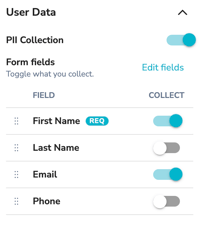
By default, you can choose to collect:
- Phone Number
- First Name
- Last Name
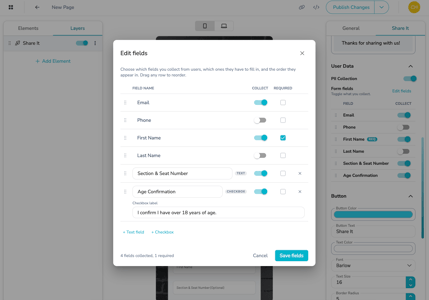
Each field can be marked as required or optional, depending on your goals. Select 'Edit Fields' to customize your form. By default, Forms also include a checkbox to opt in to marketing communications. To support modern privacy regulations and best practices, marketing communications require a separate, affirmative opt-in from users at the time of data collection.
You also have the option to collect up to 3 custom fields on your form. These can be text fields or a checkbox.
You can style the form to match your brand, including fonts, colors, button styles, spacing, and the confirmation message users see after submitting.
💡 Tip: Only ask for what you truly need. Newsletter signup? Email may be enough. Contest entry? Name + email. Sponsor activation? Maybe consider collecting phone number for follow-up. Shorter forms typically convert better.
Collecting user information with Share It
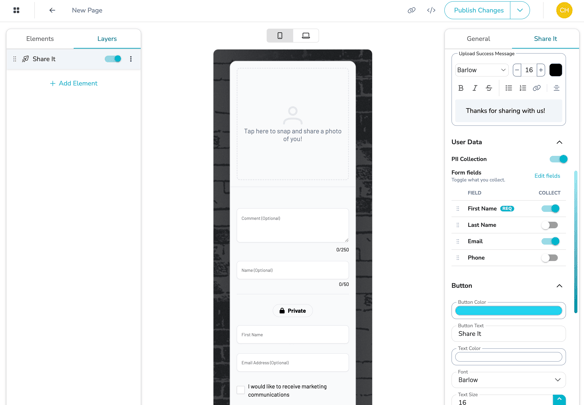
If you’re using Share It and want to collect user information at the same time:
- Add a Share It element to your Page
- Toggle on PII Collection in the settings on the right side of the builder
You do not need to add a separate Form. The user can submit their media and personal information together in one streamlined experience. All personal information is clearly labeled as Private, so your audience understands what may appear on screen and what will always remain secure. If you collect PII along with Share It, you will also see the personal information tied to the Share It upload in your analytics, so every upload can come with a way to actually reach the person who sent it. That turns "upload your photo for a chance to win" into a contest you can actually fulfill. A story tip or fan photo sent to a newsroom evolves into a real lead your reporters can follow up on.
Collecting user information before a Poll
If you want to collect information before someone participates:
- Add a Pop-Up to your Page
- Set the Pop-Up to trigger “On Page Load” (this means the Pop-Up will load as soon as someone gets to your Page)
- Add a Form inside the Pop-Up
- Customize your fields and styling
Then you decide whether submission is required:
- Select the Pop-Up layer on the left
- In the right panel, toggle “Form Submission Required” ON or OFF
- When ON: users must submit the form before participating in the poll; the Pop-Up cannot be closed without submitting
- When OFF: users can close the pop-up and continue without submitting
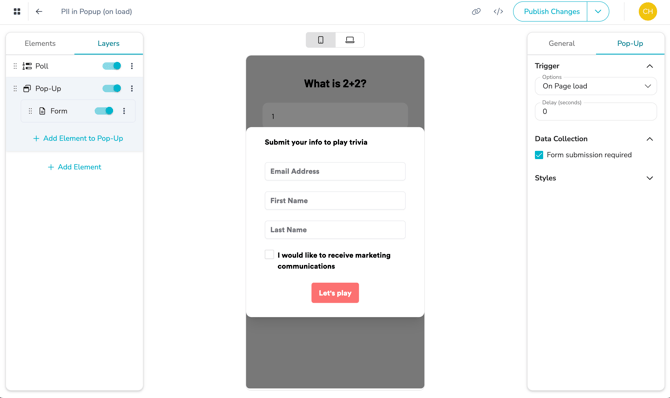
If you need help setting up your Poll or creating a Page first, explore our related guides for step-by-step walkthroughs.
Collecting user information after a Poll
You can also collect information after audience engagement, often a strong conversion moment.
- Add your Poll to the Page
- Add a Pop-Up
- Set the Pop-Up to trigger “On Poll Completion” (this means the Pop-Up will load as soon as someone finishes taking the Poll)
- Add a Form inside the Pop-Up. You can choose whether the Pop-Up can be dismissed without submitting
💡 Tip: We recommend using a 2-3 second delay before the Pop-Up appears. This gives users a moment to see poll results animate before prompting them.
If you’re running Trivia, try a conditional Pop-Up for an even more personalized and dynamic experience! You can trigger different Pop-Ups based on whether a user answered correctly or incorrectly.
Best Practices
- Keep forms short & focused
- Clearly communicate how user information will be used at the point of collection
- Align data collection with a clear value exchange
- Match the design to your brand for a seamless experience
- Test required vs. optional submission depending on your audience
An important note:
Tagboard securely processes and temporarily stores submitted personal information on your behalf. You are responsible for:
- Ensuring you have proper consent to collect personal information
- Managing how exported data is stored and used after download
- Complying with applicable privacy laws
If you’d like to add your own privacy policy to the Page, we recommend using a “Text” element to link out to your terms.
Viewing analytics and downloading your collected information
When new audience data is available, Tagboard will send a daily email notification to all team members. That email includes a quick snapshot of:
- Total form views
- Total conversions
- Conversion rate
To access the full dataset, including the personally identifiable information (PII), you’ll need to log in. From your Creator Workspace:
- Select Analytics from the left-hand menu
- Click User Data
- Export your CSV file
⚠️ Important: personally identifiable information (PII) including email addresses and phone numbers is available for up to 7 days only. You must export the CSV during that 7-day window, or the data will be permanently deleted and cannot be recovered.
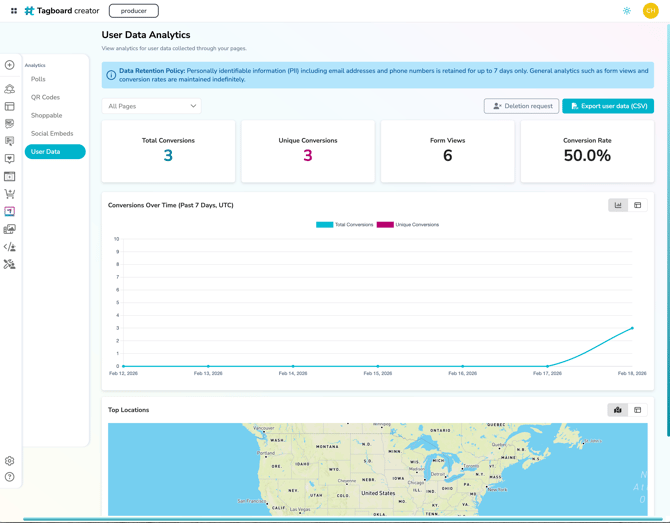
🕒 Reporting Time Zone: All audience analytics and CSV exports are generated based on Coordinated Universal Time (UTC). Daily email summaries and data availability windows (including the 7-day PII retention period) are calculated using UTC. If you’re in a different time zone, you may notice reporting cutoffs that don’t align exactly with your local day.
Quick conversion help? If you're in PT, add 8 hours (7 during Daylight Saving Time). If you're based in ET, add 5 hours (4 during Daylight Saving Time).
Viewing personal information collected with a Poll
If you collect personal information on the same Page as a Poll, you can connect poll responses with user-submitted data, like name, email, or phone number. This allows you to:
- See who voted for what
- Segment your audience based on responses
- Identify and reward specific users (ie. correct trivia answers)
To access this data:
-
From your Creator Workspace, select Analytics and click Polls
-
Select your Poll to open its Analytics
-
Choose your desired date range
- Click "Export CSV"
The exported file includes:
- Individual poll responses
- Associated information (if submitted)
- Timestamps for both actions
FAQs:
How are poll responses & personal information connected?
When someone visits your page, Tagboard assigns them a session ID. This ID is tracks activity across that session including,
- Form submissions (PII)
- Poll responses
When a user votes on a Poll, Tagboard looks for a matching Session ID, and attaches the most recent form submission from that session to the Poll response.
Important note: If a user submits multiple forms, only the most recent submission is tied to the poll data. All Form submissions are still available in User Data analytics.
What is the difference between the "Timestamp" and the "Conversion Timestamp"?
Timestamp = when the user voted on the Poll
Conversion timestamp = when the user submitted their personal information
These may differ depending on when the form was shown (ie. before or after the Poll).
How long will personal data be accessible on poll analytics?
Personally identifiable information is available for up to 7 days only. You must export the CSV during that 7-day window, or the data will be permanently deleted and cannot be recovered. Poll analytics will remain accessible beyond that window.
Why am I seeing Personal Information on Polls data, even though I didn't have a Form on that Page?
If a user previously submitted personal information on another Page and returns using the same browser/device, their Session ID may persist. Tagboard will match that Session ID to new Poll responses, allowing you to see associated personal information even if no form was present on that specific Page.
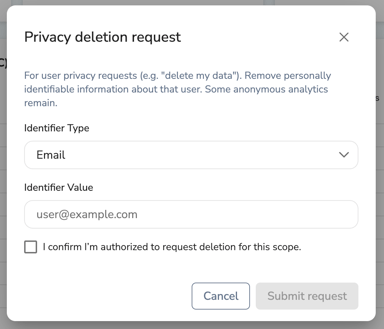
Handling privacy deletion requests
If a user requests that their data be deleted (for example, “please remove my information”), you can process that request securely inside Tagboard. From the Analytics tab:
- Select Deletion Request
- Search by email or phone number
- Confirm you are authorized to submit the request
- Complete the deletion
This will permanently remove all PII associated with that user.