.png?width=300&height=50&name=kb-logo-alt%20(1).png)
🎨 Create & Design your Graphic
Start by selecting one of the following:
- Choose from our template library
- Copy from an existing graphic already in your account
- Start from scratch, either on a black canvas or by uploading an Adobe Photoshop file
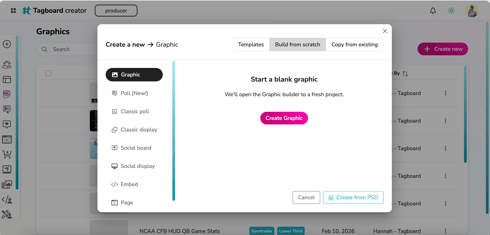
Within the graphic builder, you can choose to add a variety of basic elements:
In addition to these basic elements, there is an assortment of data, Tagboard apps and Partner apps you can add to enhance your graphics even further.
Data:
Tagboard Apps & Partner Apps:
💻 Build Your Production
After creating your graphic, head into Producer and enter your Production (or create a new one!).
From there, you can simply drag and drop your completed graphic onto your Producer Playlist.
If you need to make further changes to your graphic, selecting the element in your playlist to open up the Graphic Editor. Select a graphic layer, make your edits just like in Creator, then Update Live!
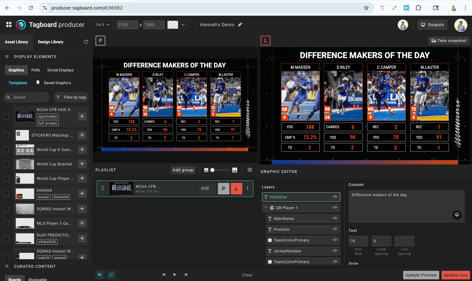
💡 TIP: Want to export the graphic? Click Take snapshot above your live window to save locally on your computer!
🎥 Go Live!
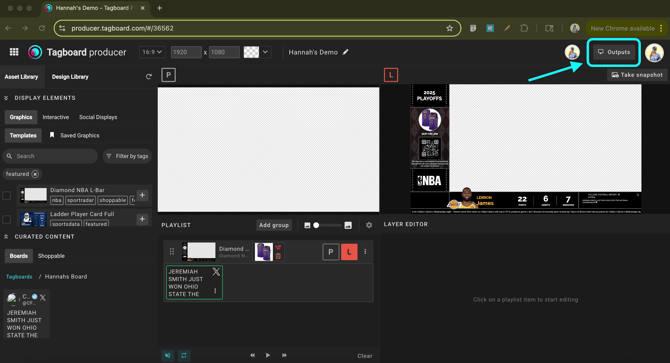
To create a new output link for this Production, select Outputs, give it a title, then create your new display URL.
For a seamless experience, be sure to:
- Use Google Chrome as your web browser
- Configure your Chrome settings to ensure you get sound by visiting chrome://settings/content/sound. Add the below websites to allow audio to play by default:
-
- https://live.tagboard.com
- https://producer.tagboard.com
- https://display.tagboard.com
-
- Follow our additional Live Display Requirements!