.png?width=300&height=50&name=kb-logo-alt%20(1).png)
The QR Code element in Custom Graphics allows you to add an interactive QR Code to any Custom Graphic. Viewers just need to open the camera app, point their phone at the QR Code to scan, and click the URL. The URL will drive viewers to virtually any website, which is added during QR Code creation.
TL;DR
Prefer written instructions? Click here to advance to the written step by step guide!
Creating a QR Code
First, click on the QR Code element icon followed by:
- Clicking in the canvas to place the QR Code OR
- Clicking and dragging in the canvas to size and place it
- either way, the QR Code can be resized by pulling any of the resize cursors as the QR Code layer is selected or within the sizing area of the right sidebar
Customizing a QR Code
After the QR Code is placed, and the QR Code layer is selected, a menu appears on the right sidebar.
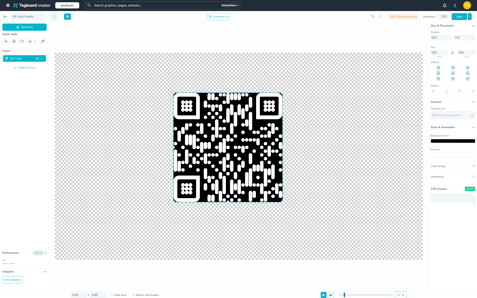
You have the following customization options:
- Size and placement of the QR code in your Custom Graphic
- Set the Tracking Link destination. This is the most important step! Choose what website your viewers will be directed to when they scan the QR Code. You can choose one of your existing Tracking Links from the dropdown, or create a new one. (Tip: want to send your viewers to one of your Tagboard Pages? No need to create a Tracking Link! We will automatically add your Pages to the dropdown.)
- Style and animation
- Background AND/or dot color can be customized. Hex codes can be used when selecting the color picker.
- Toggling "Logo image" on allows for a sponsor logo [or any image] to be placed in the center of the QR Code
- Toggling on "Animation" allows for customizing how/when the QR Code animates on/off
Analytics
The QR Code will redirect viewers to your set destination. This could be to a second-screen livestream experience, to vote in a poll on a Tagboard Page, or to a sponsored activation! You will be able to view all of the data around your Tracking Link visits in your Analytics.
Save
Now that you've created your QR Code click Save in the upper right corner. Once saved, the Custom Graphic will display the "Graphics" tab in Producer. You can take it live there.