.png?width=300&height=50&name=kb-logo-alt%20(1).png)
When you upload images to Tagboard, Media Optimization compresses your files so they load fast and play back cleanly during your live show. You stay in control of how it works, and you can update your preferences at any time.
Note: Media Optimization applies to image uploads only, > 500KB. Videos and font files are not affected.
Your First Upload
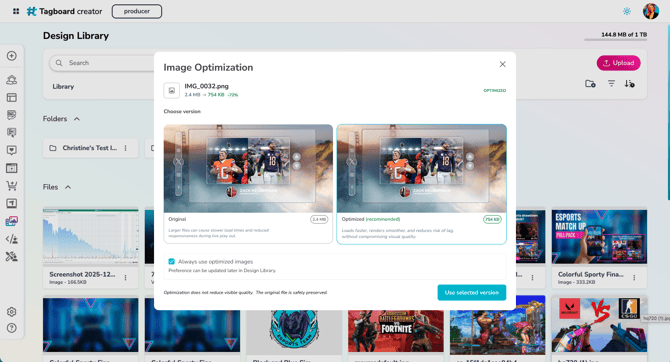
Only the first time you upload an image, you will see a side-by-side comparison of the original and optimized versions, with file sizes shown for each. The optimized version is selected by default.
From here you can set your global preference for all future uploads:
- Leave "Always use optimized images" checked and click Save to automatically optimize every upload going forward. You will not see this modal again.
- Uncheck it to keep originals by default.
You can update this preference anytime from the Design Library settings.
Global Optimization Preferences
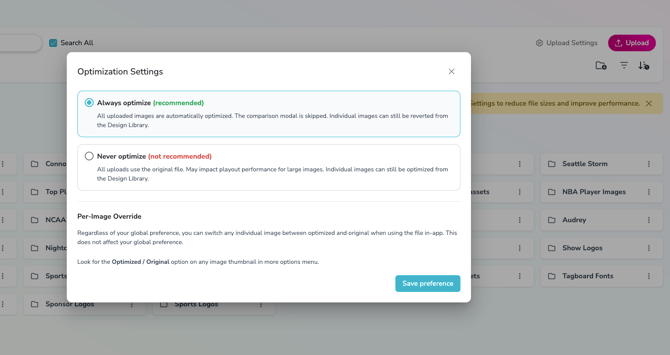
Your global preference controls what happens every time you upload an image. There are two options:
Always Optimize (recommended): Every image is automatically compressed on upload. You can still override individual images from the Design Library if needed.
Never Optimize: All uploads use the original file. You can still optimize individual images from the Design Library if needed.
Note: Never Optimize is labeled as not recommended in settings. Original files are always preserved, so switching preferences will not affect files you have already uploaded.
How to Update Your Preference
- Open the Design Library.
- Click Upload Settings in the Design Library header.
- Select your preferred option and save.
Overriding a Single Image
No matter what your global preference is set to, you can always change the optimization setting for a specific image without affecting your other uploads.
If you are set to Always Optimize and a particular image looks off on a large display, you can switch that image to use the original. Future uploads will still auto-optimize.
If you are set to Never Optimize and one specific file is very large, you can optimize just that image. Future uploads will still use originals.
To override an image:
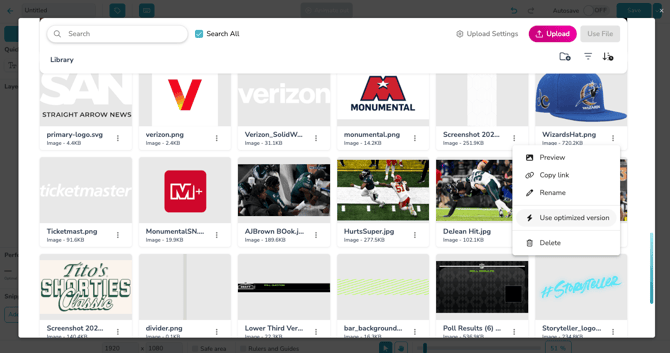
- Open the Design Library in-builder asset picker. ( The modal you see whenever adding images in Graphics, Polls, Social Displays etc.
- Find the image you want to adjust.
- In the available context menu, select Use Original or Optimize depending on your current preference.
Uploading During a Live Show
If you upload an image directly to the Asset Library inside Producer during a live show, optimization happens quietly in the background based on your global preference. No modal, no interruption, no distraction from what is happening on screen.
| Global Preference | What happens in Producer |
|---|---|
| Always Optimize | Image is automatically optimized on upload |
| Never Optimize | Original file is used on upload |
| No preference set yet | Original file is used on upload |
Performance Indicators in the Builder
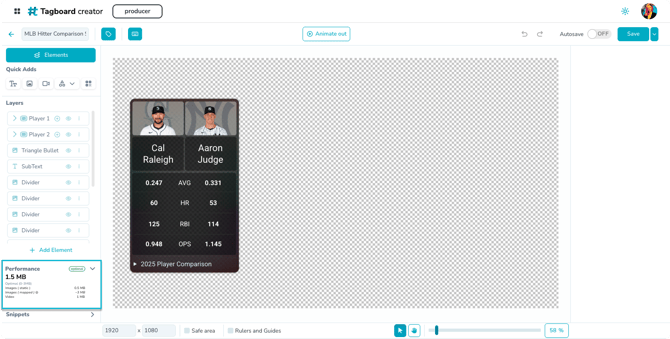
While you are building a graphic or poll, a color-coded indicator shows you the total file size of your graphic in real time. This updates as you add, remove, or swap out elements so you always know where you stand before you go live.
- 🟢 Green (0 to 3MB): You are in great shape.
- 🟡 Yellow (3 to 5MB): Getting a little heavy. Worth keeping an eye on.
- 🔴 Red (5MB and above) : This graphic is large and may not be optimized for browser performance in Producer. Consider swapping out or optimizing some of your assets.
Note: A red indicator will not block you from saving or publishing. The warning clears automatically if the file size drops back below the threshold.