.png?width=300&height=50&name=kb-logo-alt%20(1).png)
Partner Apps allow you to incorporate production-ready experiences from Tagboard's technology partners (such as Sqwad, Cue, and ScoreStream) directly into your Custom Graphics as elements. Instead of running separate tools and stitching outputs together, everything is managed and taken live from Tagboard as your single producer of record.
Benefits of using Partner Apps:
- One place to produce: Manage and take all experiences live from Tagboard, no switching between systems.
- No fragmented workflows: Especially valuable for teams where different tools are owned by different people.
- Faster setup, fewer errors: No manual stitching of tools means stronger design consistency and less room for mistakes.
You can find the full list of supported partners at tagboard.com/app-marketplace. Are you a technology partner that's interested in joining this list? We'd love to chat! Reach out to support@tagboard.com.
Connecting a Partner Account
Each partner app requires your own active account with that third-party partner. You'll need to authorize the connection to Tagboard before using a partner app for the first time.
To authorize a partner:
The first time you select a partner app in the Graphics Editor, you'll be prompted to log into your partner account to complete the authorization.
You can also manage integrations at any time from the Tagboard home page:
- Click Account Settings in the bottom left corner
- Go to Integrations
- Find the partner under Partners to connect or disconnect
Note: Only one team member needs to authorize the connection. Once authorized by the admin or any team member, the integration is shared across the entire organization.
Adding a Partner App to Your Custom Graphic
Open your Custom Graphic in the Graphics Editor and navigate to the Elements menu on the left side. Select Partner Apps, then choose your partner.
A setup modal will appear. The experience is consistent across partners:
- Select your experience: Choose from the experiences you've already built on the partner side using the dropdown. Note: the experience itself needs to be set up in the partner platform first; this step is just selecting which one to bring into Tagboard.
- Choose additional fields (if applicable): Some partners offer additional options at this step, such as selecting a big screen view versus broadcast view, or entering a widget ID (e.g. ScoreStream)
- Choose what to display: Select QR code only, display only, or both.
- Place on your canvas: Drag and drop onto your canvas to position it, or click to add it full screen
Once added, you can resize and customize the element like any other graphic layer, and combine it with additional Custom Graphic elements as needed.
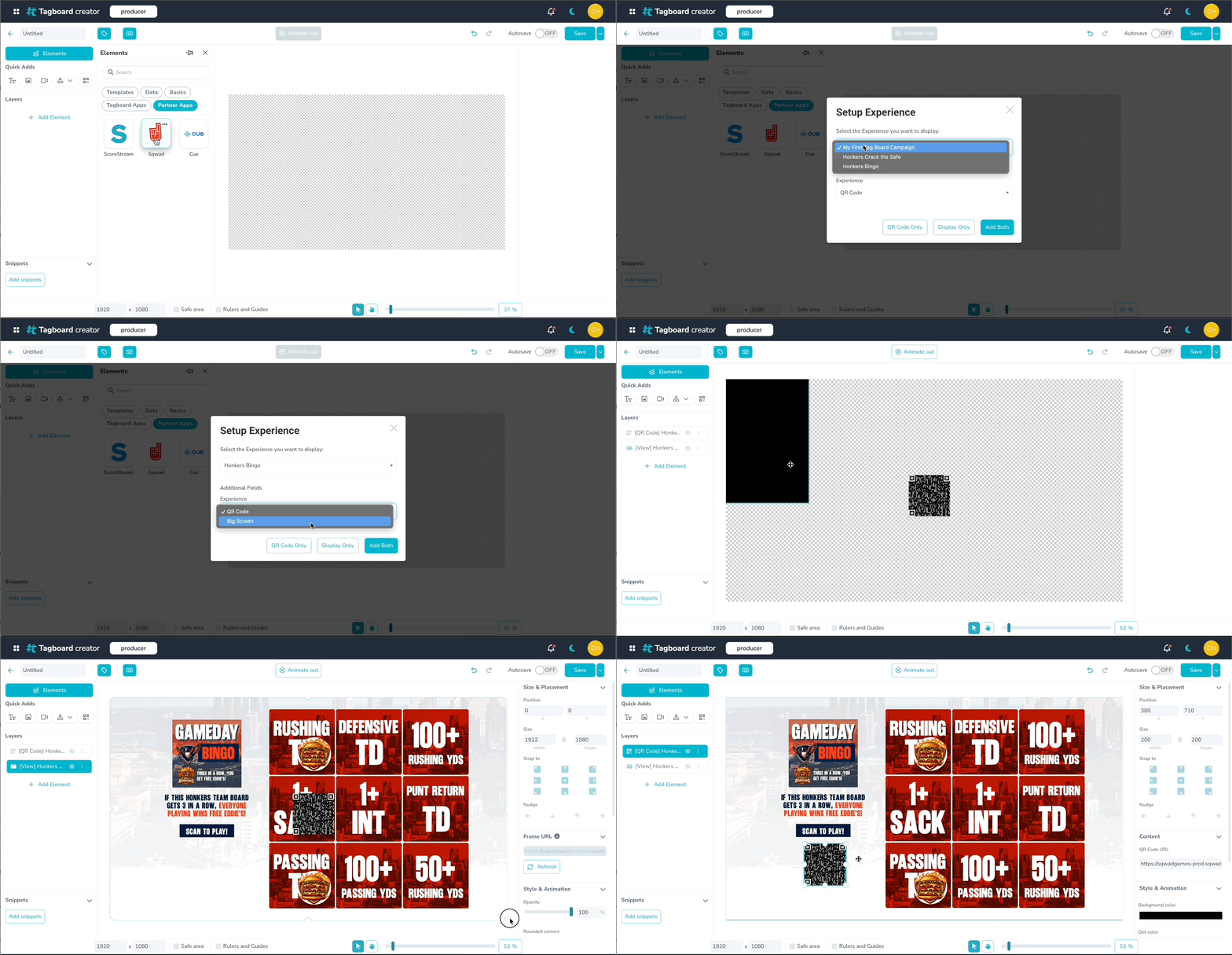
A note on partner displays: Partner app visuals are iframes served directly from the partner. The source URL is locked and cannot be modified. If you include a QR code, it uses Tagboard's native QR code element and comes pre-mapped to the correct destination for that partner experience, no manual URL entry required.
Using Partner Apps in Producer
Once your Custom Graphic is saved, head to Tagboard Producer and drag it onto your playlist.
Click the Custom Graphic layer to open the Graphic Editor. If your partner app includes multiple display layers (e.g. a QR code layer and a view layer), they will each appear as separate layers.
Because Partner App visuals are iframes served directly from the partner, Tagboard renders them exactly as the partner provides them. If something looks off or isn't behaving as expected within the display, we'd recommend reaching out to your partner's support team.
Triggers
Some partner apps include live triggers, such as controls to start, stop, or activate elements of the experience during a production. Triggers are always found on the view layer (not the QR code layer).
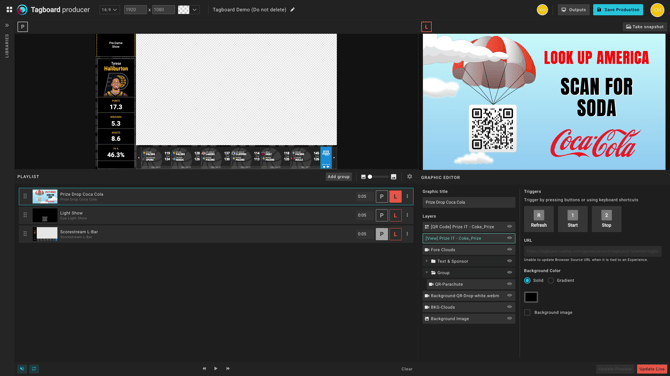
To use triggers, select the view layer in the Graphic Editor. Available triggers will depend on the partner. Examples include starting and stopping a light show, or opening and closing a prize drop window.
Important: Triggers will only work if the graphic is currently in the Preview or Live window. If the display is not active, triggers cannot be used.