.png?width=300&height=50&name=kb-logo-alt%20(1).png)
The Poll Display app allows you to bring a Tagboard Poll into the Custom Graphics builder as a layer, placing live poll results alongside your other custom graphic elements on a single canvas and a single output.
Benefits of using the Poll element:
- Design flexibility: Place your poll results alongside other custom graphic elements like live sports stats, social displays, or QR codes on a shared canvas.
- Responsive sizing: Resize the poll to fit any portion of your canvas
- Unified output: Run a custom graphic and poll together through a single production and a single output, eliminating the need to run two productions simultaneously.
Before adding a Poll to your graphic, you'll need a poll and at least one on-screen display already built. If you haven't done that yet, start here:
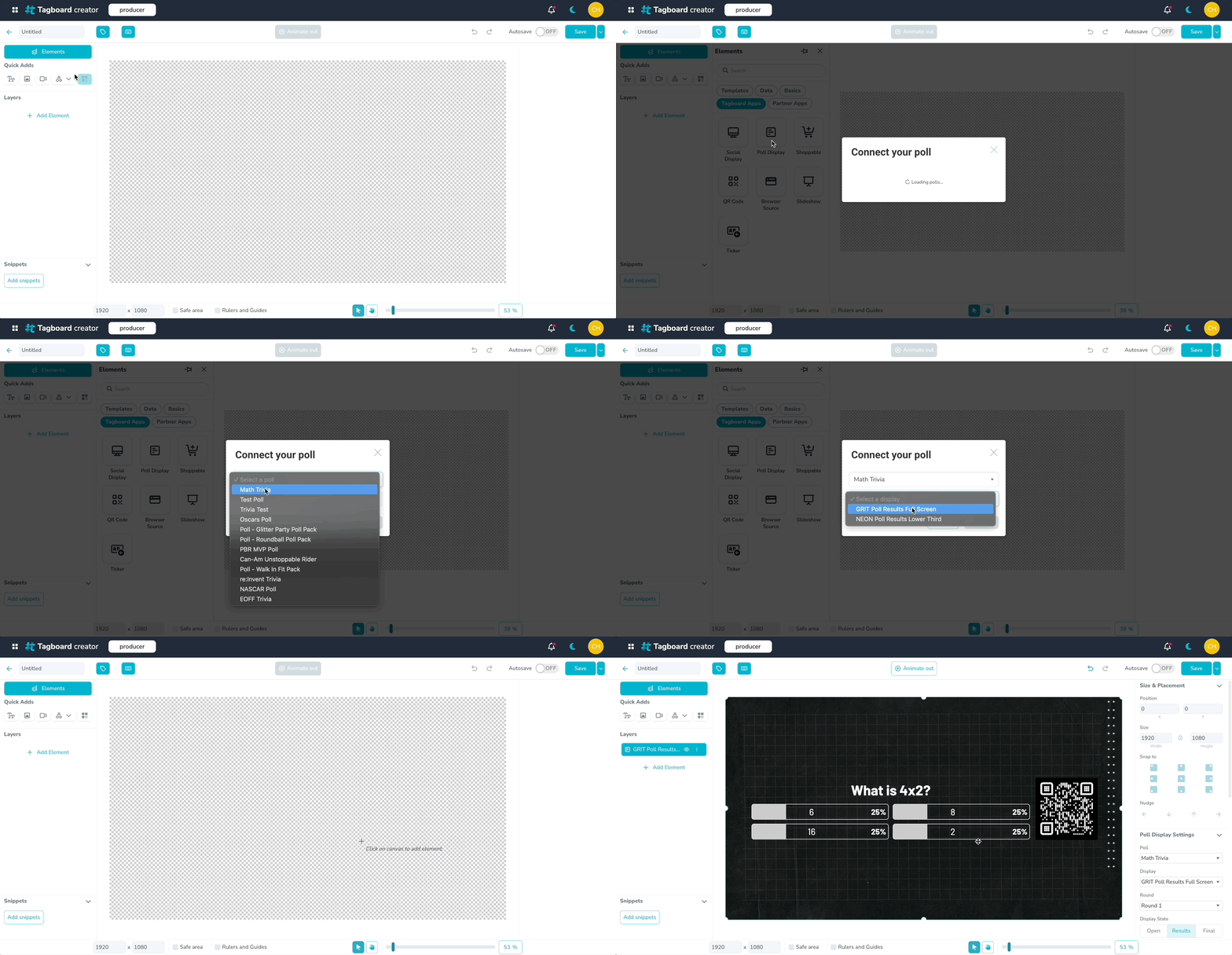
Once your poll is ready, open your custom graphic in the Graphics Editor and navigate to the Elements menu on the left side. Select Tagboard Apps, then choose Poll Display.
Connecting Your Poll
- Choose a poll from your account
- Choose a poll graphic: a single poll may have multiple layouts (e.g. a full screen display, a sidebar display, a lower third display). Select the one that fits your custom graphic.
Note: Only on-screen layouts are available here: the graphics built to show poll results on a connected screen. Voting (interactive web) displays, where viewers click to vote, cannot be added to a custom graphic.
Once you've selected your display, click Connect.
Adding the Element to Your Canvas
After connecting, you have two options for placing the poll on your canvas:
- Drag and drop to position it in a specific area
- Click to add to place it full screen across the entire canvas
Customizing the Poll Element
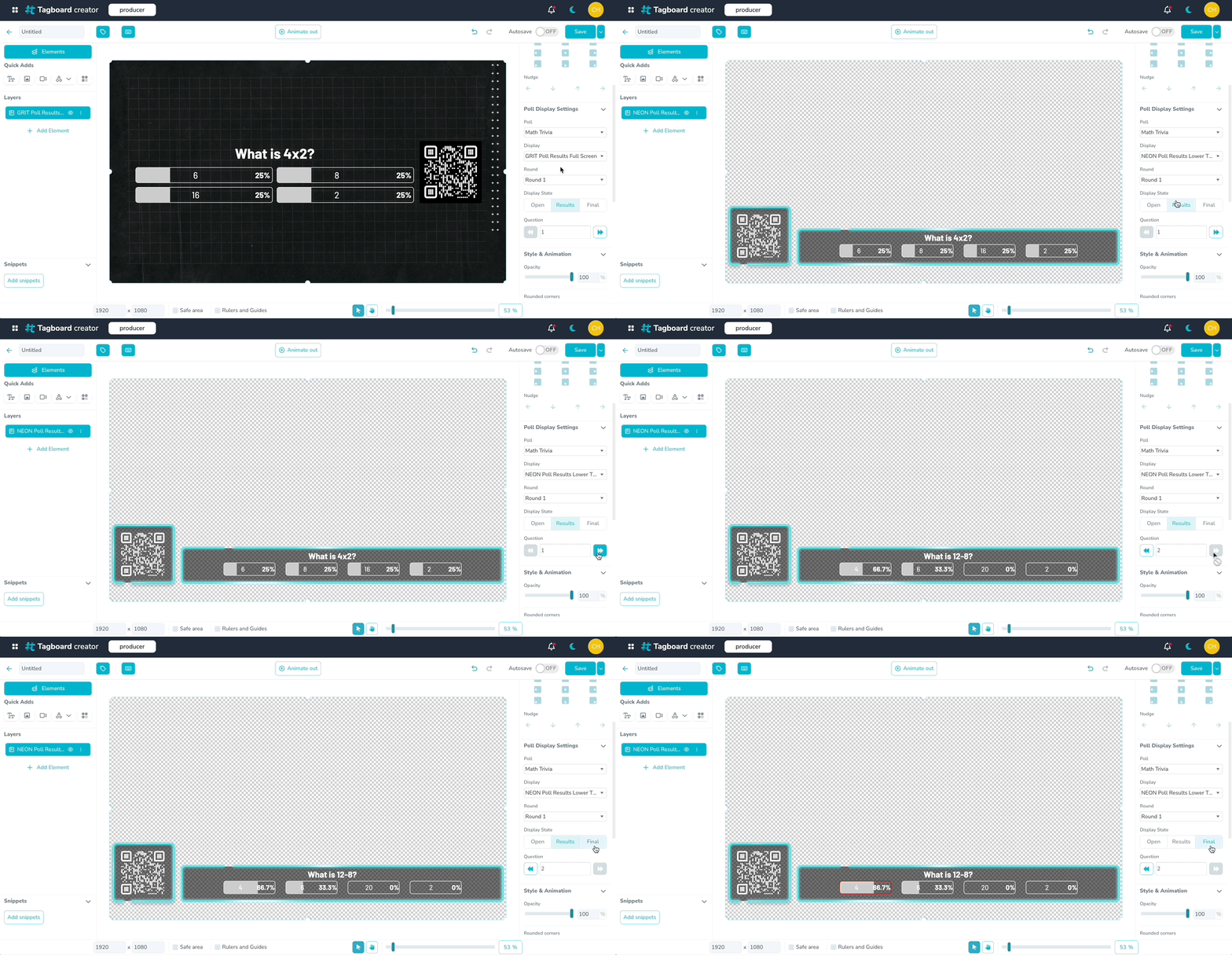
Click the layer to open customization options in the right sidebar. Standard options are available just like any other Custom Graphic layer, including size and placement, style, animation, shadow, border, and blur.
The settings unique to the Poll Display element are in the Poll Display Settings section:
-
Switch Poll: Swap to a different poll on your account without leaving the graphic editor.
-
Switch Poll Layout: Change which layout is shown for the connected poll (e.g. switch from a full screen to a vertical).
-
Switch Round: If your poll has multiple rounds, toggle between them here
-
Display State: Set the state of the poll display: Open or Results. The poll graphic will default to "Results"
-
Switch Question: If your poll has multiple questions, navigate between them here.
When you're done, click Save.
Using the Poll Element in Producer
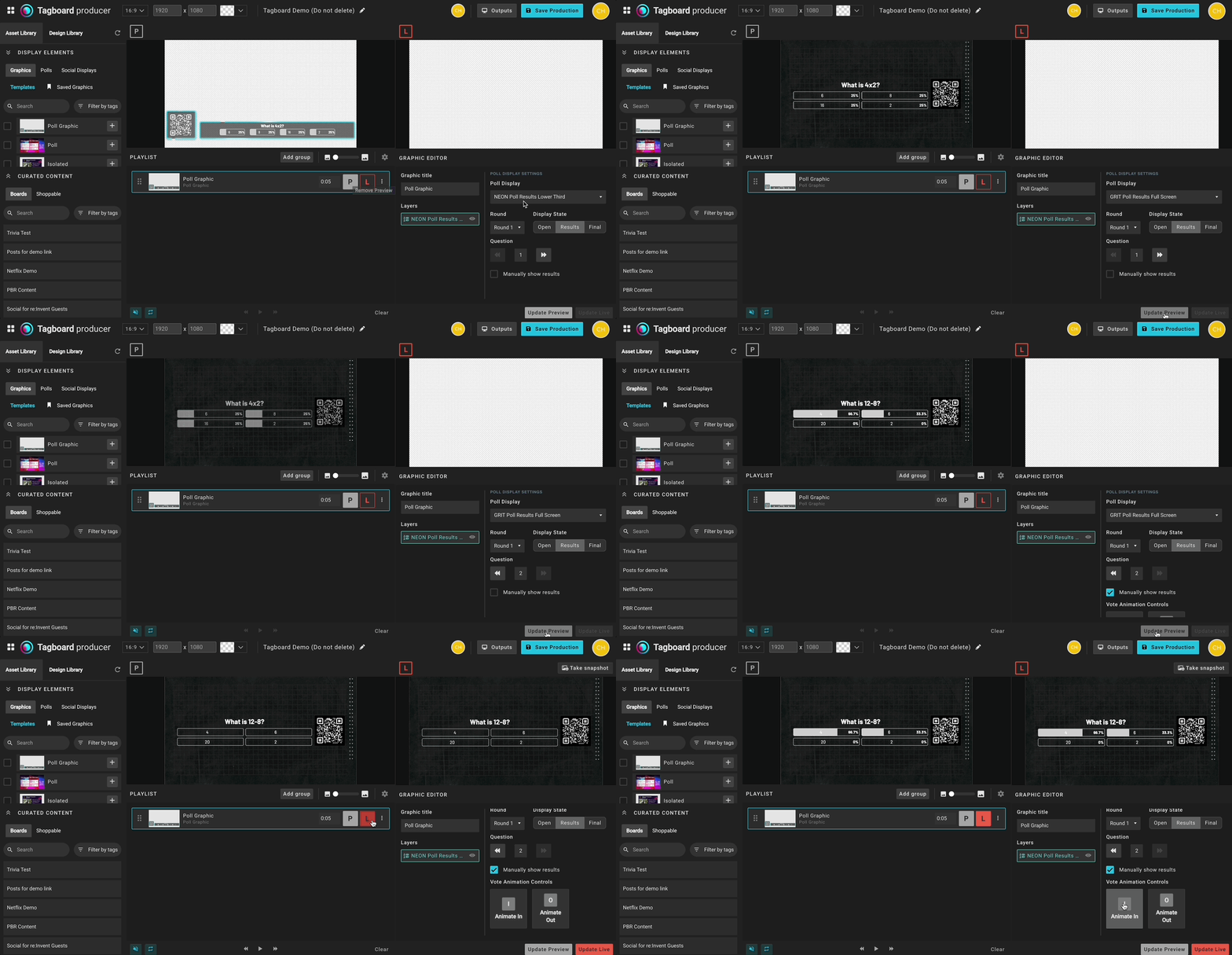
Once your graphic is saved, head to Tagboard Producer and drag it onto your playlist. Click the graphic layer to open the Graphic Editor.
From the Graphic Editor in Producer you can:
- Switch Layout: Change which poll layout is shown (e.g. full screen vs. vertical). Note: the poll itself can only be changed in the Graphics Editor, not in Producer.
- Switch Question: Toggle between questions in a multi-question poll
- Display State: Manually move between Open and Results states
- Manually Show Results: when this is toggled on, you can animate the results on and off screen using hotkeys. Use this when you want to read a call to action before revealing results.