.png?width=300&height=50&name=kb-logo-alt%20(1).png)
The Social Display app allows you to bring a Tagboard Social Display into the Graphics builder as a layer, combining social content with your other graphic elements in a single canvas.
Benefits of using the Social Display app:
- Design flexibility: Place social alongside other Custom Graphic elements like live sports stats, polls, or QR codes on a shared canvas
- Responsive sizing: Resize Social to fit any portion of your canvas without custom CSS or bespoke design work
- Multi-post layouts: Bring in grids, waterfalls, carousels, and mosaics, not just single posts!
- Unified output: Run a Custom Graphic with social together through a single production and a single output
Adding Social to Your Graphic
To get started, open your graphic in the Custom Graphics Editor and navigate to the Elements menu on the left side. Select Tagboard Apps, then choose Social.
A modal will appear showing all Social Graphics available on your account. From here you can:
- Search by name or filter by tag to find the display you want
- Select a display to add it to your canvas
- Click Create New if you need to build a new graphic first. This will open the Social builder in a new tab. See Social Graphics 101 for a full walkthrough.
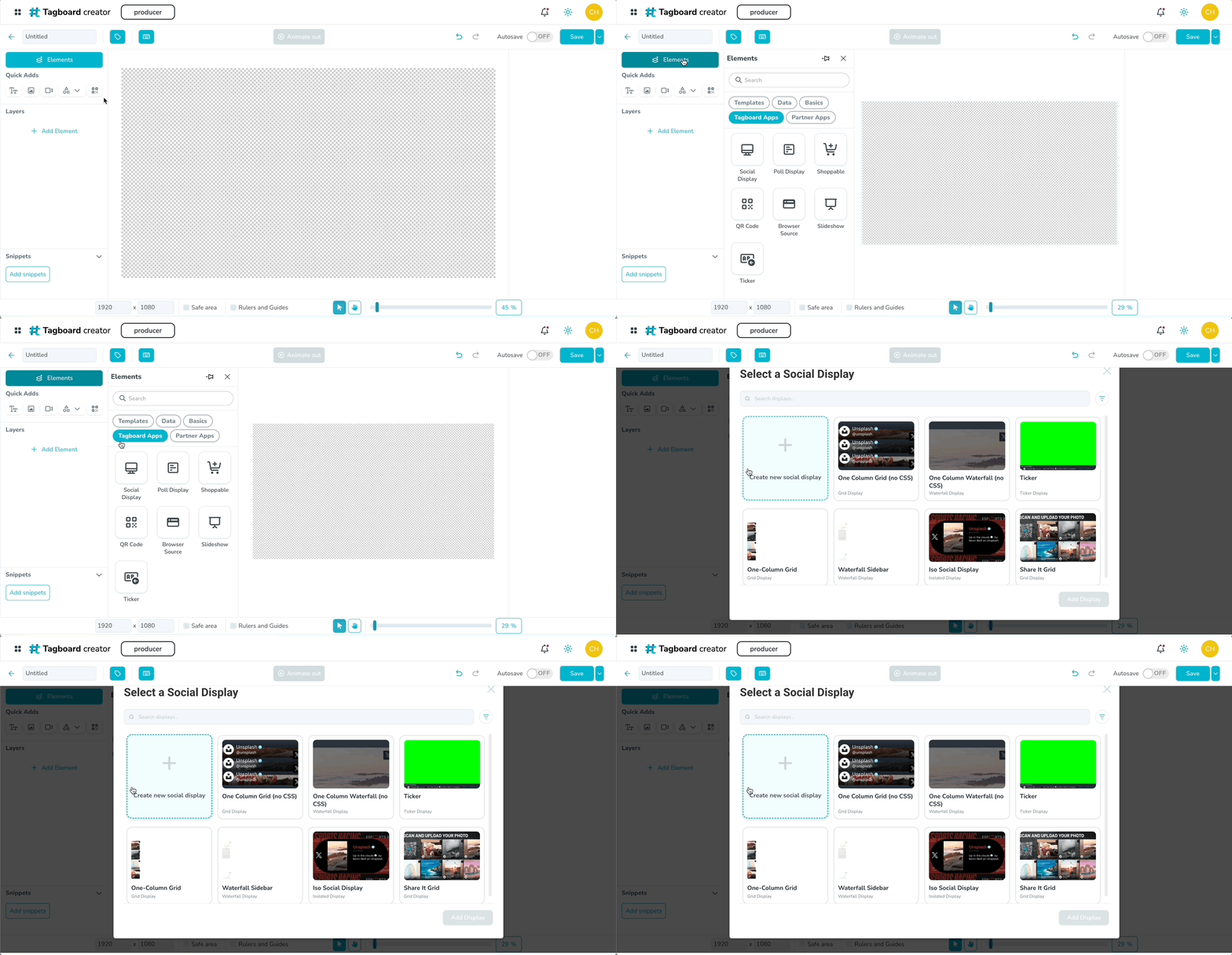
Once you've selected a display, you have two options for placing it on the canvas:
- Drag and drop to position it in a specific area
- Click to add to place it full screen (e.g. 1920x1080) *a timesaver when the social display is the primary layer!
Note: Each Custom Graphic can only have one Social Display App.
Customizing the Social Graphic Element
Once the element is on your canvas, click the layer to open customization options in the right sidebar. Standard options like size and placement, shadow, blur, border, and animation are available, just like other Custom Graphic layers.
The options unique to the Social element are:
-
Switch to another Social Graphic: Swap to a different Social Graphic on your account without leaving the builder. Useful for quickly testing different layouts or display types.
-
Post Animation: Change how posts animate within the graphic (e.g. flip, slide down). This updates the Social Graphicbehavior live on the canvas
-
Preview Data: Choose a Board from your account to preview real content in the builder. Note: the live social data source is ultimately set in Producer, not here.
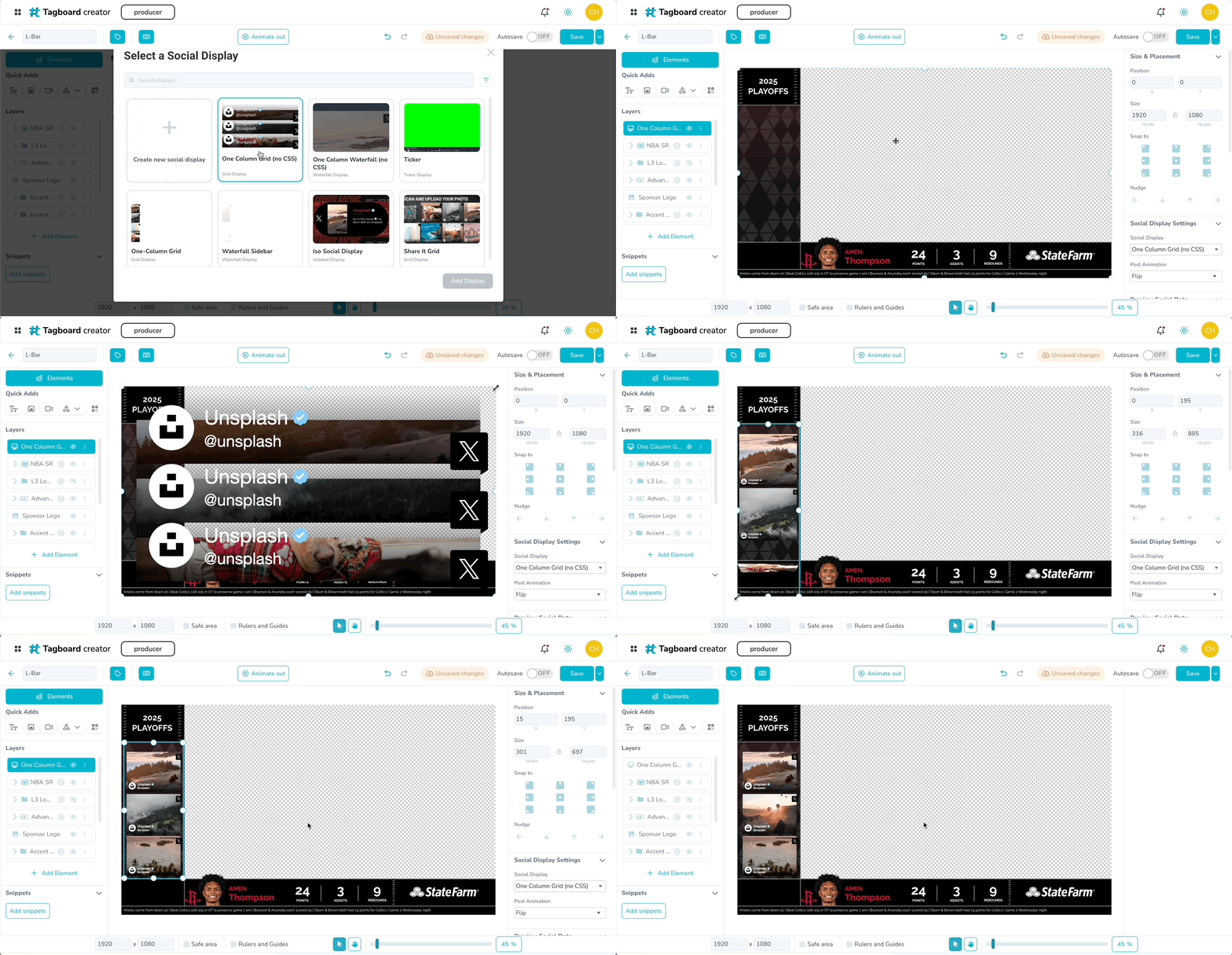
Since Social Graphics are responsive, you can resize the element to fit any portion of your canvas and the content will respond automatically. For example, try creating a sidebar! Create a Grid or Waterfall layout and set it to one column. Resize the element to occupy the side of the canvas. No custom CSS required.
Using the Social Element in Producer
Once your custom graphic is saved, head to Tagboard Producer and drag it onto your playlist. The Element behaves just like a Social Graphic, with a drop zone to load social content. If you are using a multi-post display (like a Grid or Waterfall), you'll need to drag & drop an entire Social Board. You can queue individual social posts on any type of single-post display.
.png?width=670&height=396&name=producer.tagboard.cloud_%20(1).png)
When you click the layer to open the Graphic Editor in Producer, you'll see options in the Graphic Editor:
- Switch Social Graphics: Change the social graphic being shown (Multi-post displays require a full Social Board attached; they cannot support individual posts. If you are switching between a single-post layout and a multi-post layout, it will clear all individual social posts from the custom graphic.)
- Interactive toggle: Turn interactivity on or off for the display
- Show CTA: Hide or show the display call to action (when toggled on, you also have the option to update the CTA text)
- Post animation: Update the post animation (e.g. flip, slide down)
- Cycle speed: Control how quickly the posts automatically cycle, between 1-100 seconds
- Background: Update the background (key if the display is not fullscreen)